
Contents13
- The verdict — if in doubt, pick the MX Master 3
- Comparison table — specs and feel
- Shape and grip
- Thumb wheel — the centerpiece of horizontal scrolling
- Side button layout
- Main wheel and charging
- How to choose — by use case
- Stationary desk, lots of Excel or code
- You want to plant your whole palm / you have larger hands
- Mostly portable, lives in a bag
- Mainly gaming
- FAQ
- Wrap-up
2026 update: Ported from the old VuePress blog. The MX Master 2S is no longer part of the current lineup — the 2026 successor is the MX Master 3S. The 2S-vs-3 contrast below still maps cleanly onto the choice between the 2S and the 3S. Screenshots are kept from the original write-up.
I wanted a good mouse for work, and Logitech kept coming up. The decision stalls at the same place every time: MX Master 2S or MX Master 3.
After six-plus months with each, this is the difference between them.
The verdict — if in doubt, pick the MX Master 3
Short answer: for a new purchase, go with the MX Master 3 (or the current 3S).
It comes down to three things:
- The thumb wheel (side wheel) is bigger, and horizontal scrolling happens with one finger
- Charging moved to USB Type-C, so the cable is shared with everything else on the desk
- The main wheel senses scroll speed and switches modes automatically
That said, if you like to plant your whole palm on the mouse, or you have larger hands, the MX Master 2S can still be the better fit. For per-model detail, see the standalone reviews of the MX Master 2S and the MX Master 3.
Comparison table — specs and feel
Short answer: shape, thumb wheel, and charging are the main differences. The price gap is roughly 3,000 to 4,000 yen.
| Angle | MX Master 2S | MX Master 3 |
|---|---|---|
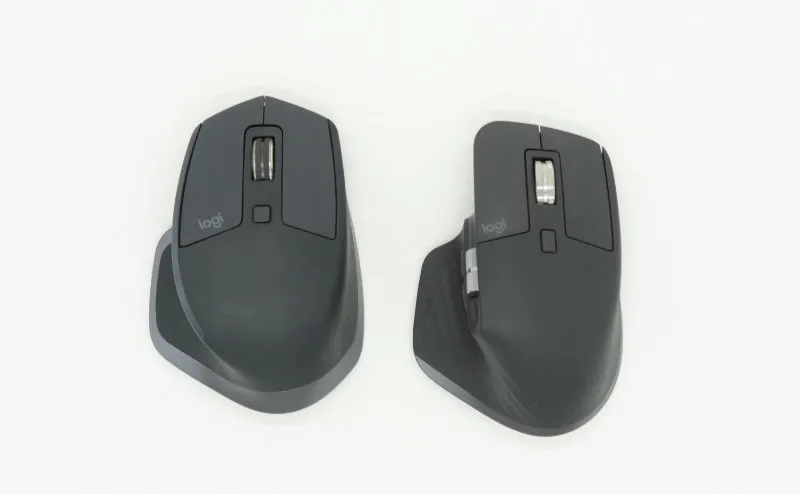
| Shape | Flatter, curved | Taller, more squared off |
| Suggested grip | Palm rest | Pinch with thumb and pinky |
| Thumb wheel | Small | Large |
| Side button layout | Stacked vertically | Front-back (horizontal) |
| Main wheel | Mechanical (manual switch) | MagSpeed (auto switch) |
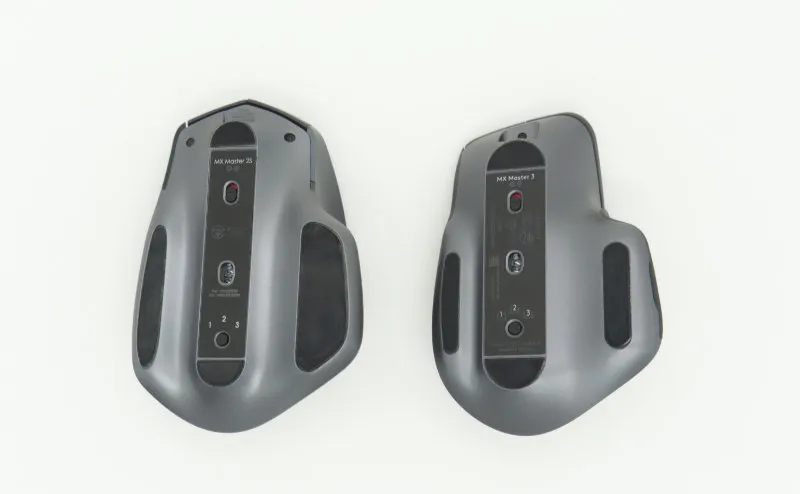
| Charging | micro-USB Type-B | USB Type-C |
| Stated battery life | ~70 days | ~70 days |
| Price at time of writing | ~9,400 yen | ~13,000 yen and up |
On paper the 3 wins on every axis, but the shape preference sits on a separate axis — the table alone is not enough to decide.
Shape and grip
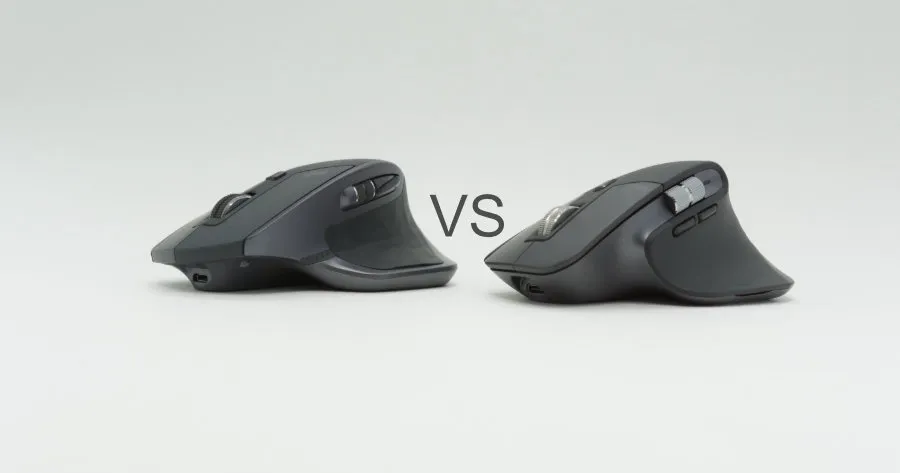
Short answer: the 2S is flatter, the 3 is taller. The grip itself changes.
The 2S has a rounded left flank, so the natural grip is to rest the palm on top — the weight of the hand holds the mouse.
The 3 has a straighter left flank and a taller back. You end up pinching the waist between thumb and pinky and lifting the mouse to move it.
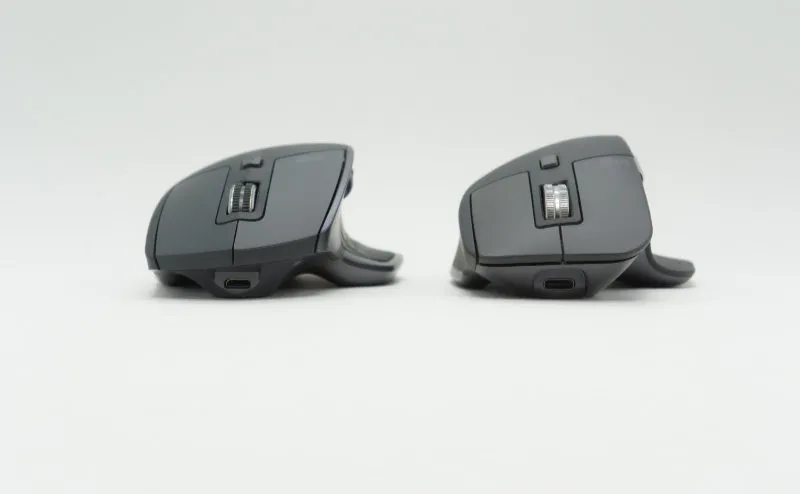
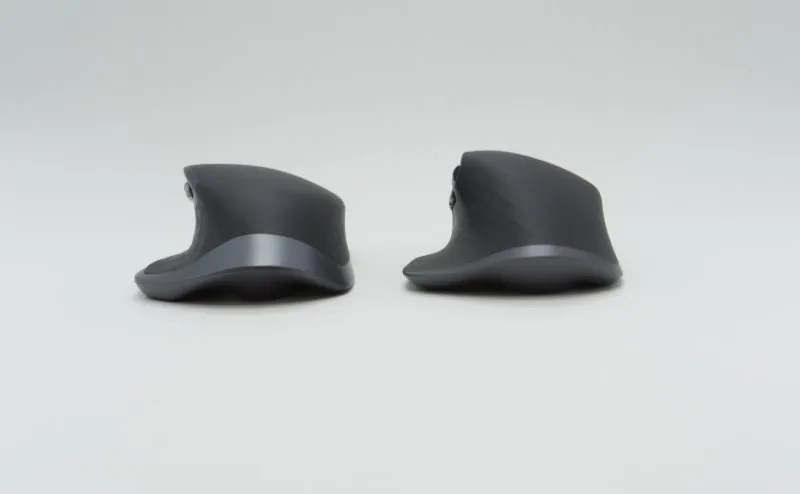
From behind, the 3 is clearly the taller of the two. That is what makes the “pinch grip” sit right on it.
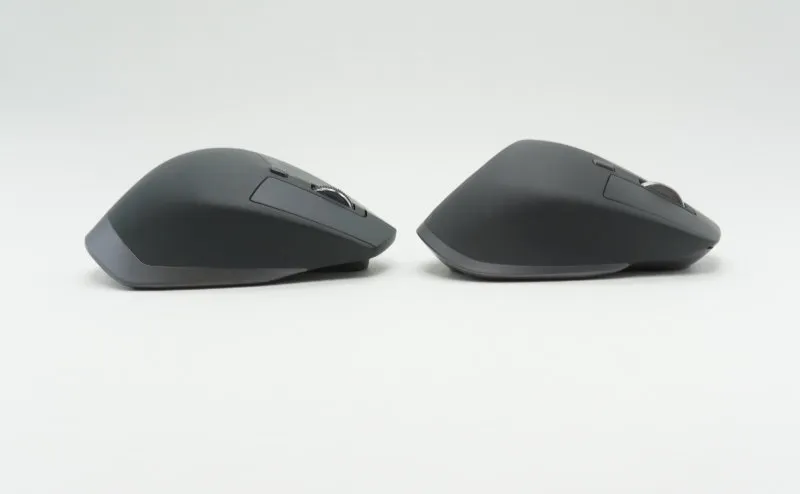
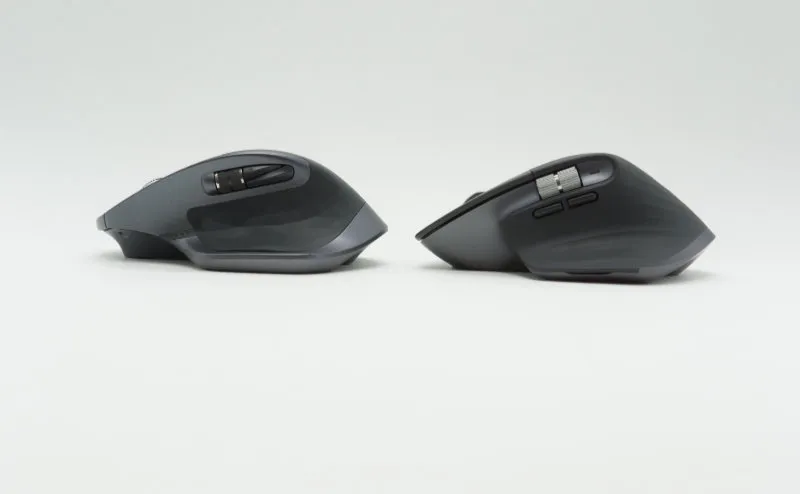
The left flank angles differ, and so does the way the thumb reaches the thumb wheel. On the 3, the wheel sits where the pad of the thumb naturally lands.
Thumb wheel — the centerpiece of horizontal scrolling
Short answer: the 3’s thumb wheel is clearly easier to use. If you live in Excel or wide code files, the difference shows.
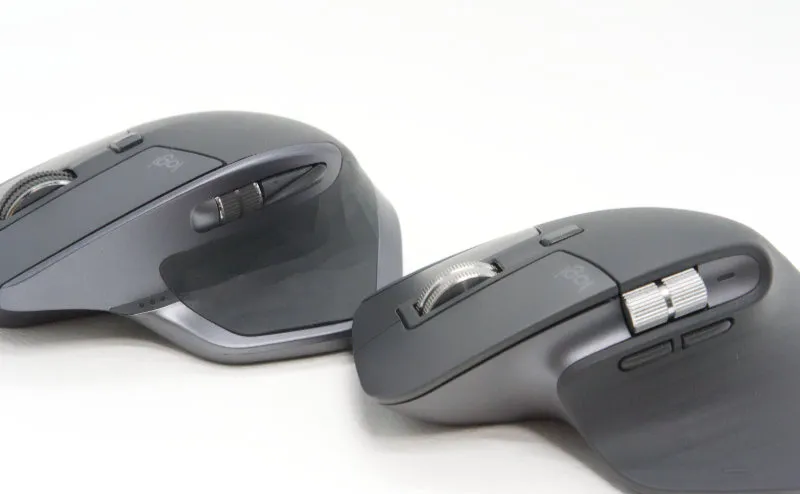
The thumb wheel handles horizontal scrolling. Panning right in Excel, scanning long lines of code, scrubbing a video timeline, dragging horizontally in Figma — all of them resolve to one finger, no keyboard modifier.
The 2S’s thumb wheel is small enough that the pad of the thumb has to hunt for it. On the 3, it is big enough that the thumb falls onto it naturally.
Being able to drive both axes at once — main wheel for vertical, thumb wheel for horizontal — is a strength shared by both mice.
Side button layout
Short answer: the 2S stacks them vertically, the 3 uses front-back. Front-back is more intuitive.
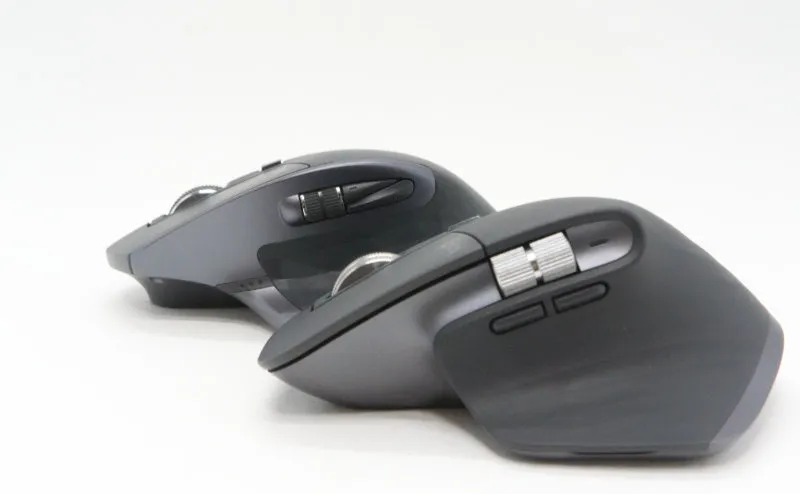
The 2S’s side buttons are stacked vertically — uncommon even within Logitech’s lineup. Once you adapt, the two are quick to tell apart, but mapping them to Back and Forward tends to produce misfires.
The 3 goes back to a front-back layout, which lines up with most other mice. Switching between mice in the same day no longer costs anything.
Main wheel and charging
Short answer: the 3’s main wheel switches automatically. Charging is USB Type-C, which makes cable sharing easy.
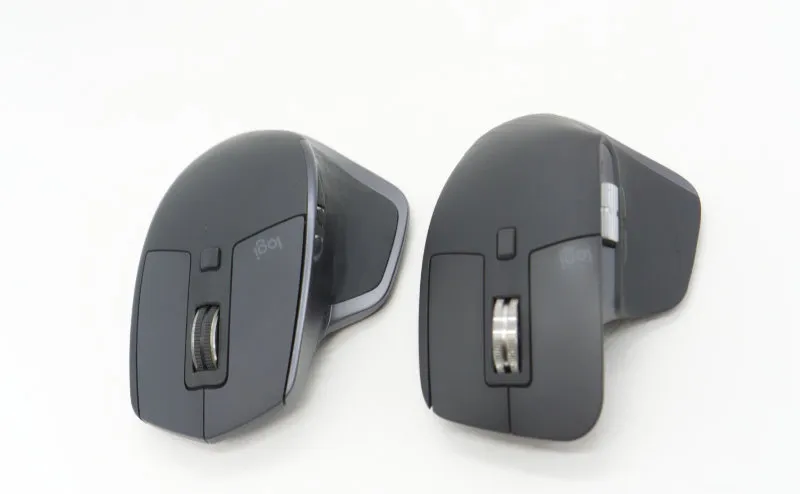
Both mice have two main-wheel modes: notched (gear-like feedback) and free-spin (smooth, continuous). The 2S switches between them with a button on the wheel. The 3 uses an electromagnetic mechanism called MagSpeed and switches automatically based on scroll speed.
Slow scrolls stay precise, fast scrolls take off. Not having to think about which mode is active turns out to matter more than it sounds.
Charging is micro-USB Type-B on the 2S and USB Type-C on the 3. In 2026 most peripherals assume Type-C, so being able to share one cable across the desk is a small but real win for the 3. The charging cycle is once every two or three months, so this is not a deal breaker.
How to choose — by use case
Short answer: pick by workload and hand size. Heavy Excel use leans 3; a stationary home-desk mouse is more about preference.
Stationary desk, lots of Excel or code
Pick: MX Master 3
The larger thumb wheel pairs well with work that asks for constant horizontal scrolling. The auto-switching main wheel helps anyone moving up and down long sheets. Type-C is a quiet plus for keeping the desk tidy.
You want to plant your whole palm / you have larger hands
Pick: MX Master 2S
The 3 assumes a pinch grip. If you prefer to rest your palm flat on the mouse, the 3 can feel a little cramped. For larger hands used to flatter mice, the 2S’s shape sits better.
Mostly portable, lives in a bag
Neither is the right call
The MX Master line is sized for the desk. For travel, the smaller MX Anywhere 3 line fits a bag without complaint.
Mainly gaming
Neither is the right call
Response feels like an ordinary office mouse. For FPS or anything that needs precise input, a dedicated gaming mouse is the better tool. The 2S also has a known durability concern around the gesture button (see the 2S standalone review), which makes it a poor fit for heavy clicking.
FAQ
Q. Can the MX Master 3 work for smaller hands? A. The 3 is built around the pinch grip, so finger length matters more than overall palm size. If your fingers can hold it, you can operate it. If you have any doubt, holding one in a store is the surest way to decide.
Q. Does it work on a Mac? A. Both mice work. Logi Options+ (formerly Logicool Options) has a Mac build, and either Bluetooth or the USB receiver gets you connected.
Q. Does it work with an iPad? A. From iPadOS 13.4 onward iPads support mice over Bluetooth pairing. Some of the gesture and thumb-wheel features may not be fully supported on the iPad side, so mileage depends on the workflow.
Q. In 2026, should I just go with the 3S? A. For a new purchase, yes. The 3S is a refined 3 — improved sensor resolution and quieter clicks. The notes here on “the 3” largely transfer to the 3S.
Wrap-up
The MX Master 2S and MX Master 3 share a series name, but the shape and feel are closer to two different mice.
For a new purchase, the MX Master 3 (or the current 3S) is the safer pick. If you prefer a palm grip and the size suits your hand, the 2S still has a place.
The full per-model write-ups live in the MX Master 2S review and the MX Master 3 review — worth a read if this comparison alone is not enough to decide.