
Contents15
- The verdict — if you do not already own a 2S, get the 3 (or the 3S)
- Build and feel
- What worked
- MagSpeed — ratcheted and free-spin, switched automatically
- A thumb wheel you can actually roll
- Charging is USB Type-C
- Battery life
- What didn’t
- No size options
- Price stayed high
- The gesture button is still the soft spot
- Comparison: MX MASTER 2S vs 3 vs 3S
- The software (Logicool Options / Logi Options+)
- FAQ
- Verdict — pays off if you do horizontal scrolling every day
2026 update: Ported and revised from the old VuePress blog. The MX MASTER 3 itself is an older model in 2026 — the current line is the MX Master 3S (higher sensor resolution and quieter clicks). The review angles in this piece (charging port, MagSpeed wheel, thumb wheel) carry over to the 3S, so it should still be useful whether you are looking at the 3 or the 3S. The screenshots in this article are from Logicool Options at the time of writing; today it has been replaced by Logi Options+.
I used the Logitech MX MASTER 3 for over a year at work and at home. This is the write-up from that time.
I covered the previous model in a separate post: the MX MASTER 2S review. This is the sibling piece — focused on what changed and what did not between the 2S and the 3. If you are deciding between the 3, the 2S, and the 3S for a new purchase, the comparison should give you enough to choose.
The verdict — if you do not already own a 2S, get the 3 (or the 3S)
Short answer: the move to USB Type-C alone is reason enough to upgrade from a 2S. Add the MagSpeed wheel and the wider thumb wheel, and two-axis scrolling in Excel, code editors, and Figma gets visibly smoother.
The three main deltas from the 2S:
- Charging port: micro-USB → USB Type-C
- Main wheel: mechanical → MagSpeed (electromagnetic), which switches between ratcheted and free-spin automatically based on how hard you flick it
- Thumb wheel (horizontal scroll): larger, easier to roll with the pad of your thumb
What did not change is the size lineup (full-size only) and the distinctive sculpted shape. For smaller hands it is still a large mouse, and that stays true on the 3S too.
Build and feel
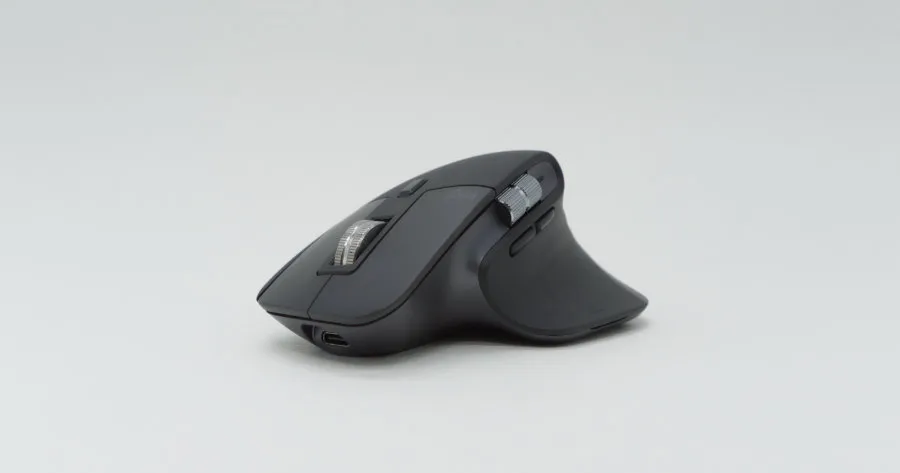
Short answer: lined up next to a 2S, the 3 reads as a more angular sibling. USB Type-C is on the front, and the enlarged thumb wheel is on the left flank.
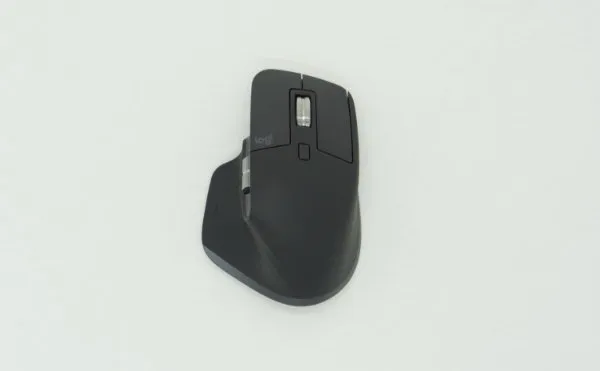
A Logicool logo sits on the left click. Directly above the main wheel is the scroll-mode toggle (ratcheted / free-spin). On the thumb side is the gesture button.
Connection is over Bluetooth or the USB receiver that succeeded Unifying. The receiver is included (the first run of the MX MASTER 3 shipped with the receiver; some 3S configurations sell it separately).
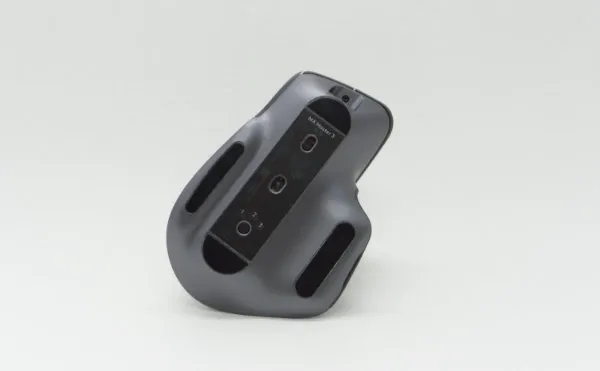
The underside carries the power switch and a device-pair toggle (up to three devices). The sensor is rated 1000 dpi (the 3S raises this to 8000 dpi).
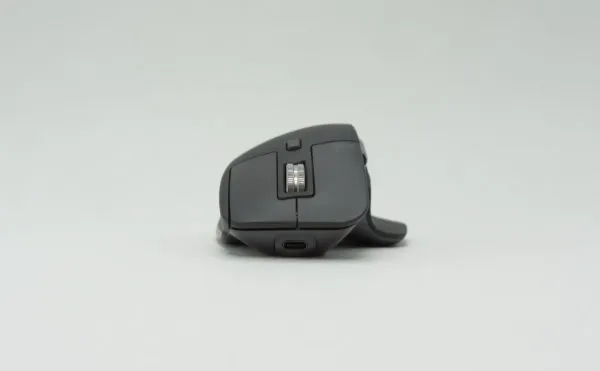
USB Type-C lives on the front. This is the single biggest change from the 2S’s micro-USB Type-B, and the day-to-day payoff — one cable type across the whole desk — is bigger than it sounds.
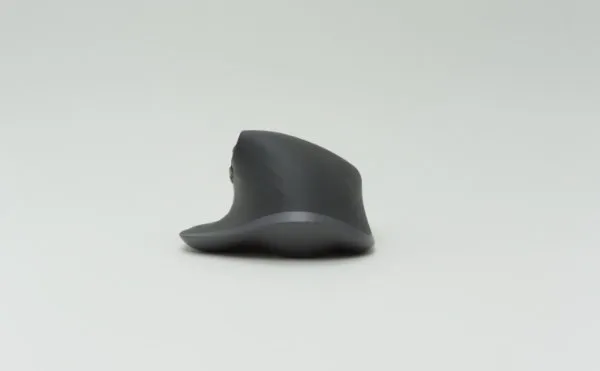
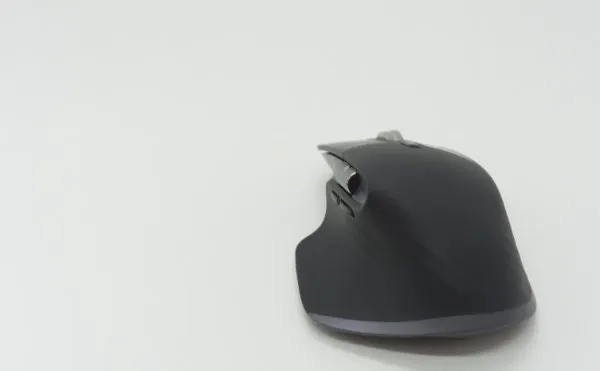
From behind, the body has a clear waist through the middle. You grip it with the thumb on one side of the waist and the pinky on the other — the same hold as the 2S.
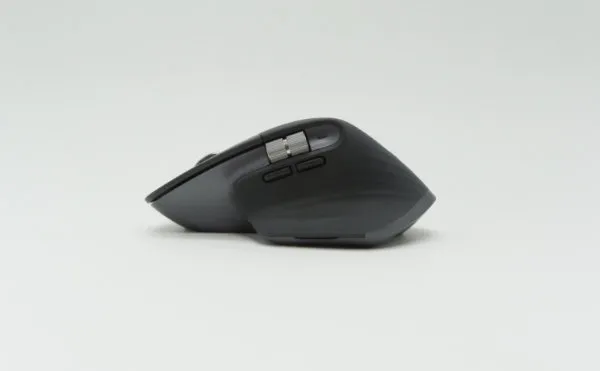
The left flank carries two side buttons (back/forward) and the horizontal thumb wheel. The thumb wheel is now nearly the size of the main wheel — easier to roll than the narrow strip on the 2S. A short green indicator blinks when you turn the mouse on.
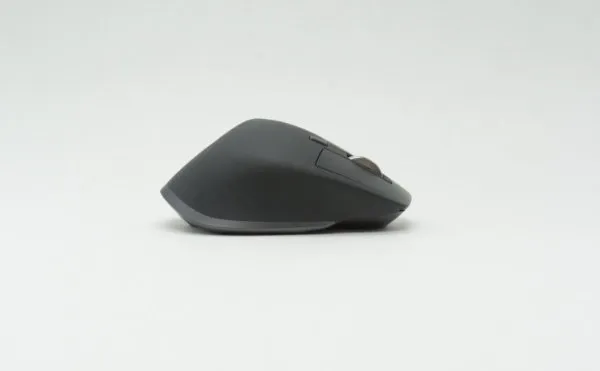
The right side is plain — no buttons.
What worked
Short answer: the “it just switches” feel of the MagSpeed wheel, the wider thumb wheel, and USB Type-C charging.
MagSpeed — ratcheted and free-spin, switched automatically
This is the headline feature of the MX MASTER 3. Roll the wheel a little and you get the familiar ratcheted clicks; flick it hard and it shifts into free-spin mode, flying to the bottom of the page in one motion.
The switch happens automatically based on rotation speed. If you want to lock one mode, the button above the wheel toggles between ratcheted and free-spin explicitly.
The place this pays off most is moving up and down long files — code, long articles, deep spreadsheets. On the 2S I worked around it by holding Shift and tapping a button, or by keeping a second mouse on the desk for free-spinning. On the 3, one wheel covers both jobs.
A thumb wheel you can actually roll
Functionally it is the same “dedicated horizontal-scroll wheel” as on the 2S, but the larger shape lets the pad of the thumb sit on it comfortably.
Horizontal pans in Excel, canvas panning in Figma, scrubbing a video timeline — already comfortable on the 2S, now resolved with even less finger travel. Rolling the main wheel and the thumb wheel at the same time gives you simultaneous two-axis scrolling, and that is hard to go back from once it sinks in.
Charging is USB Type-C
The single biggest weak point of the 2S, gone. I almost wrote “charging only happens every two or three months, so it does not really matter” and then deleted it — being able to keep a single cable type on the desk turns out to matter more than the charge interval would suggest.
Battery life
Logitech lists 70 days. In actual use, charging every two or three months has been enough. After a full charge it feels the same as a freshly charged 2S.
What didn’t
Short answer: still full-size only, still on the expensive side, and the gesture button is “somewhat better” than the 2S rather than “fixed”.
No size options
The 3, like the 2S, comes in a single full size. For smaller hands it is still a large mouse.
If a smaller body matters more than the thumb wheel, the MX Anywhere 3 is the other Logicool option. The Anywhere 3 has the MagSpeed main wheel but no thumb wheel — so the “horizontal scrolling is great” part of this review does not apply.
Price stayed high
Around 13,000 yen at the time of writing. Whether the deltas from the 2S — Type-C, MagSpeed, the larger thumb wheel — justify that depends almost entirely on how much horizontal scrolling you do in a day.
For someone in Excel, Figma, or a video editor every day, the payback comes quickly. For browsing-heavy use, a used 2S or waiting for the 3S below is often the more satisfying buy.
The gesture button is still the soft spot
In the 2S review, I wrote about the gesture button sticking in the pressed state after a hard press mid-game. The same structure carries into the 3, and the same risk exists for users who hammer it during long gaming sessions (my own unit has not reproduced it).
For gaming, a dedicated gaming mouse is still the honest recommendation.
Comparison: MX MASTER 2S vs 3 vs 3S
The three siblings, side by side.
| Angle | MX MASTER 2S | MX MASTER 3 | MX Master 3S |
|---|---|---|---|
| Charging | micro-USB Type-B | USB Type-C | USB Type-C |
| Main wheel | Mechanical (ratcheted) | MagSpeed (electromagnetic, auto switch) | MagSpeed (electromagnetic, auto switch) |
| Thumb wheel | Yes (narrow) | Yes (larger) | Yes (larger, same as the 3) |
| Sensor resolution | 4000 dpi (rated) | 1000 dpi (rated) | 8000 dpi (rated) |
| Click acoustics | Standard | Standard | Quiet click |
| Battery (rated) | 70 days | 70 days | 70 days |
| Sizes | Full-size only | Full-size only | Full-size only |
| Software | Logicool Options | Logicool Options / Options+ | Logi Options+ |
| Released | 2017 | 2019 | 2022 |
For a fresh purchase, the 3S is the easiest recommendation. If the price gap is large enough on a clearance 3, the 3 still holds up. The 2S is hard to find new in 2026; if you want USB Type-C, skip it.
The software (Logicool Options / Logi Options+)
The companion app remaps every button and tunes wheel sensitivity. At the time of writing it was Logicool Options; in 2026 it has been replaced by Logi Options+.
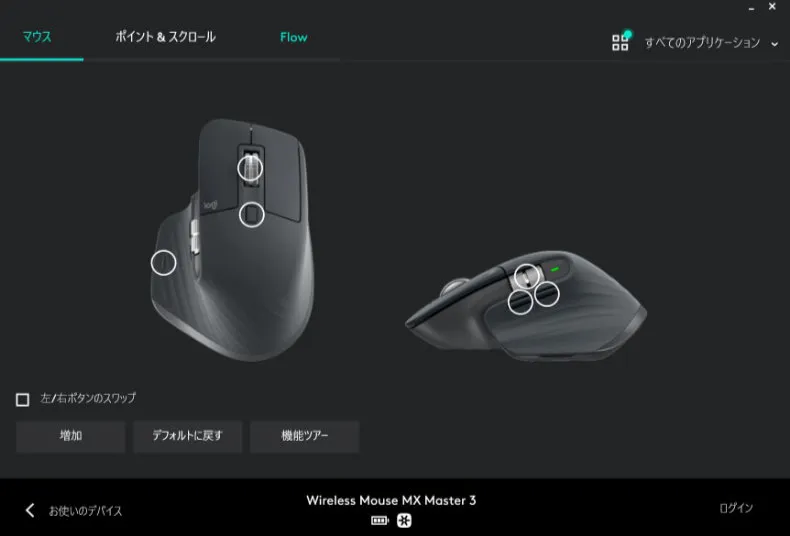
The mouse view changes each button’s action. The thumb wheel accepts horizontal scroll, next/previous, volume, tab switching, and more.
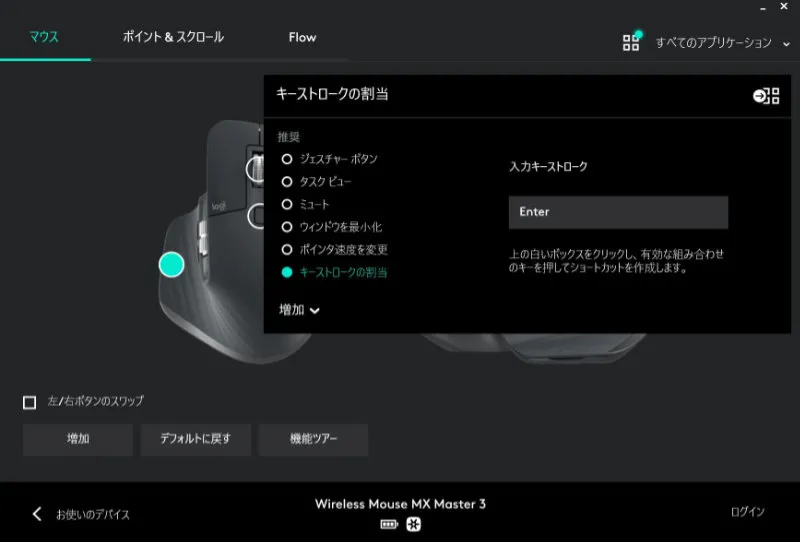
The gesture button can carry four directional actions on top of its press. I do not use it heavily, so mine is set to Enter.
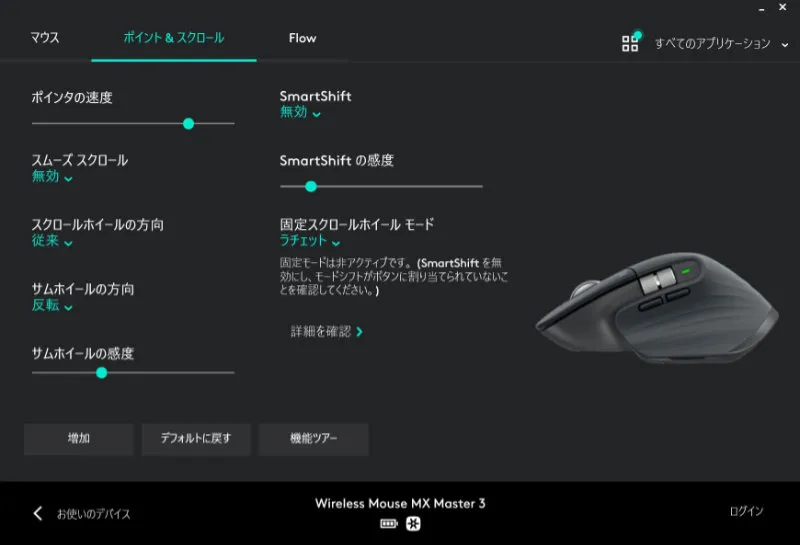
Pointer speed, thumb-wheel sensitivity, and scroll direction are all tunable in fine steps. Per-app tuning works too — for example, dialling down the scroll distance just for Excel.
FAQ
Q. Does it work with a Mac? A. Yes. Logi Options+ has a Mac build. It pairs over Bluetooth or the USB receiver, and macOS-specific gestures (Mission Control and similar) can be assigned.
Q. Is it worth upgrading from the MX MASTER 2S? A. The two big wins are USB Type-C charging and the MagSpeed wheel’s free-spin. If you do a lot of horizontal scrolling, the upgrade is worth it. If you mostly browse and the micro-USB port on the 2S does not bother you, there is no urgency.
Q. Now that the MX Master 3S exists, is there a reason to buy the 3? A. If the street-price gap is clearly in the 3’s favor, yes. The 3S’s main improvements are sensor resolution (1000 → 8000 dpi) and quieter clicks; the horizontal-scrolling and thumb-wheel feel are the same as on the 3. Pick the 3S if quiet offices or late-night sessions matter to you. Pick the 3 if price matters more.
Q. How usable are the gestures? A. Holding the thumb gesture button while flicking the mouse up, down, left, or right triggers a configurable action in each direction. It is genuinely handy for Mission Control and virtual-desktop switching, but the press feel is unusual and it took me a few days to get used to. In the end I drifted away from gestures and settled on a single-press action (Enter).
Verdict — pays off if you do horizontal scrolling every day
Short answer: the natural sequel to the 2S. USB Type-C closes the most painful gap, and the main wheel jumps a tier with MagSpeed. For a new purchase, lean 3S; for a price-led decision, the 3 is still a fine pick.
If you live in Excel, Figma, or a code editor and move around the screen on both axes, the price comes back in saved time within a few months. If you mostly browse, have smaller hands, or care most about quiet clicks — pick whichever of those applies and look at the 3S or the Anywhere 3 instead.
For the sibling review, see the MX MASTER 2S.