
Contents14
- The verdict — buy it if you live in Excel’s horizontal axis
- Build and feel
- What worked
- The side wheel — Excel horizontal scrolling in one flick
- Thumb buttons stacked vertically, easy to press
- A design that does not stand out in an office
- What didn’t
- Sized for larger hands, with no smaller option
- Charging is micro-USB Type-B
- The gesture button is the weak link
- Comparison: MX MASTER 2S vs 3 / 3S
- The software (Logicool Options)
- FAQ
- Verdict — a mouse for a specific kind of work
2026 update: Ported from the old VuePress blog. The MX MASTER 2S is an older model in 2026 — the current line is the MX Master 3S. The review angles here (side-wheel value, hand-size fit, gesture-button caveat) still hold up.
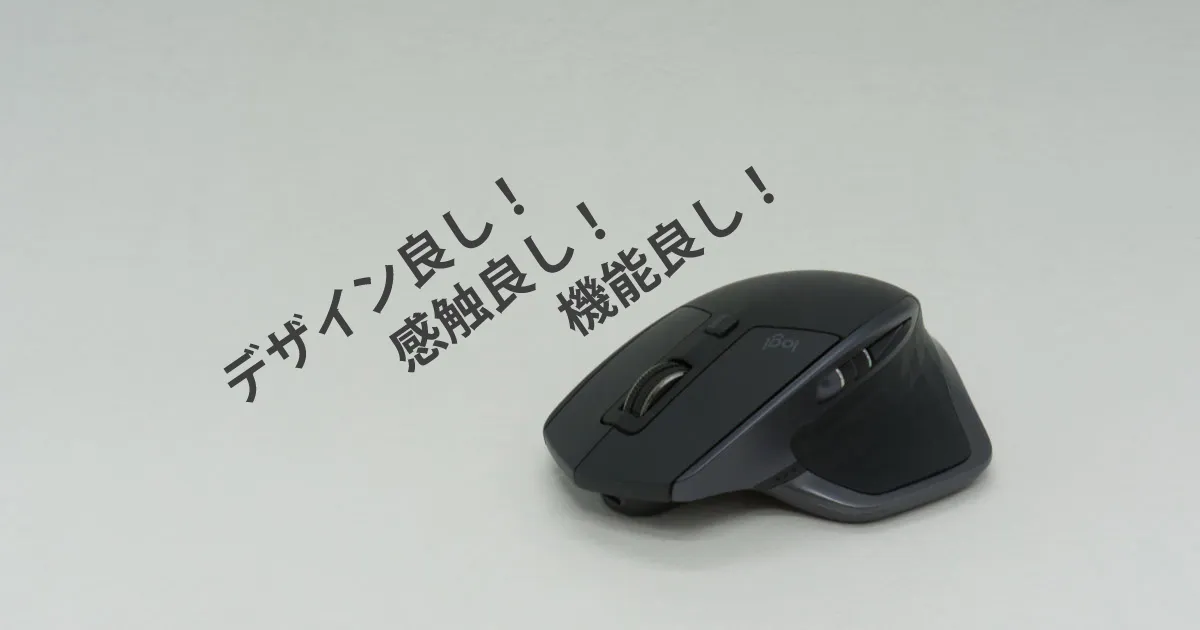
I used the Logitech MX MASTER 2S at work for over half a year. This is the write-up from that time, kept for reference.
It is the kind of mouse that feels expensive on the shelf — around 9,400 yen at the time of writing. If you spend your days in Excel or creative tools, the productivity gain pays the difference back.
The verdict — buy it if you live in Excel’s horizontal axis
Short answer: the side wheel makes horizontal scrolling so easy it becomes invisible. If you scroll vertically and horizontally all day in Excel or design tools, the price is justified.
The reason is mechanical. Operations that normally cost a “Shift + wheel” combo, or a drag to the edge of the window, collapse into a single flick of the side wheel. Multiply that by the hundreds of times a day you scroll, and the one-or-two-second saving adds up.
A few cautions before buying:
- Smaller hands: the MX MASTER 2S is a large mouse, and there is only one size
- Heavy gaming use: there is a known durability issue with the gesture button (covered below)
Build and feel
Short answer: a sculpted, monochrome body with a distinctive front taper. It looks like a premium tool, not a peripheral.
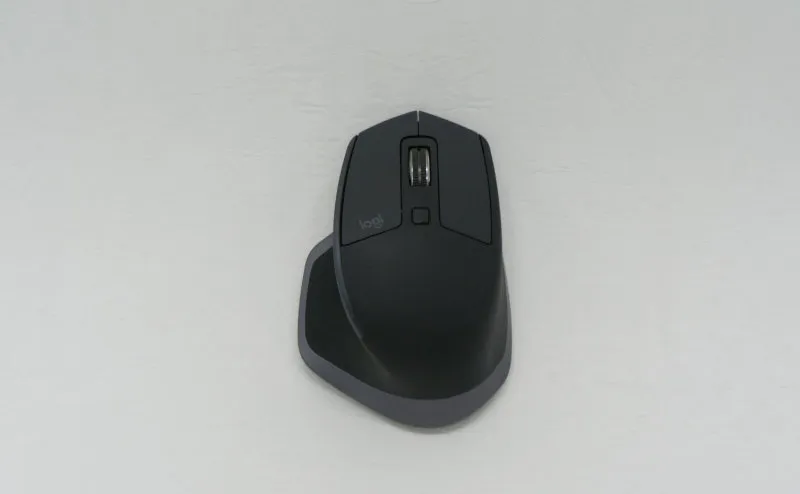
From the side it reads like a horizontal “H” — you grip it between thumb and pinky rather than draping your hand over it.
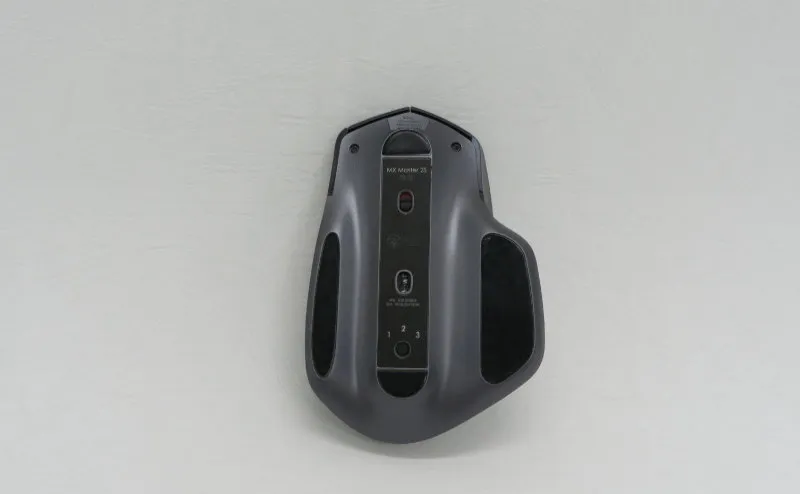
The underside holds the power switch and a device-pair toggle. It pairs with up to three devices.
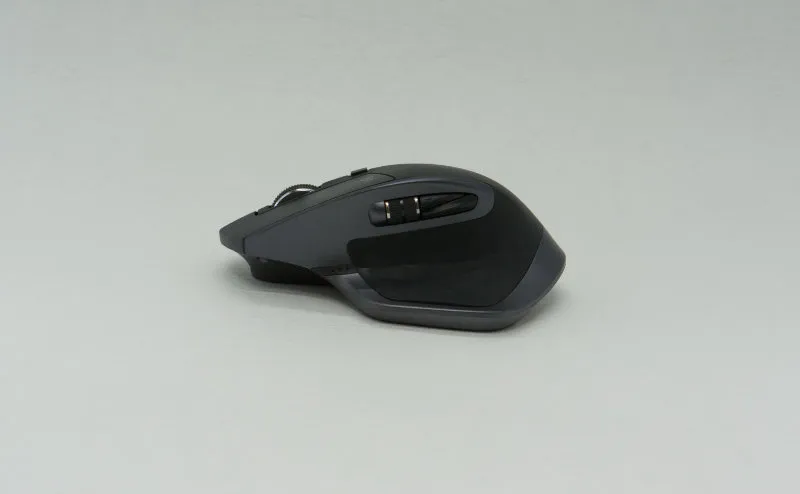
The left flank carries the thumb rest with the gesture button, the side wheel, and two vertically stacked thumb buttons. Charging is over micro-USB Type-B — one of the model’s few real weak points.
What worked
Short answer: the side wheel is the headline. The shape and the button layout are quiet upgrades on every other mouse I had used.
The side wheel — Excel horizontal scrolling in one flick
This is the single biggest difference from any other mouse. A dedicated horizontal-scroll wheel sits on the left flank.
Horizontal pans in Excel, canvas panning in Figma, timeline scrubbing in a video editor — all of them resolve to one finger, no keyboard modifier.
Thumb buttons stacked vertically, easy to press
Most mice put the thumb buttons in a front-back layout and map them to Back and Forward. The MX MASTER 2S stacks them vertically. It feels strange for a day, and then you stop noticing — the two buttons are easier to tell apart by feel.
A design that does not stand out in an office
The matte, monochrome finish keeps it quiet on a desk. It looks at home in a home office or a meeting room without drawing attention.
What didn’t
Short answer: it is large, it charges over micro-USB Type-B, and the gesture button has a durability concern.
Sized for larger hands, with no smaller option
For me the grip was the most comfortable I had used. For smaller hands it is harder to recommend, and there is no smaller variant. If you can, hold one in a store before committing.
Charging is micro-USB Type-B
In 2026, USB Type-C is the default for peripherals. Charging happens every two or three months, so it is not a daily annoyance — it is just one more cable to keep around.
The gesture button is the weak link
This is the reason I eventually moved on from this mouse.
Mid-game, I pressed the gesture button with some force and it stuck in the pressed state. It is the kind of thing you could fix by opening the body, but I did not feel I had clicked it especially hard — the structure looks under-built for that kind of input.
If you tend to hammer buttons during long gaming sessions, take this seriously.
Comparison: MX MASTER 2S vs 3 / 3S
| Angle | MX MASTER 2S | MX MASTER 3 / 3S |
|---|---|---|
| Charging | micro-USB Type-B | USB Type-C |
| Main wheel | Mechanical | MagSpeed (electromagnetic) |
| Side wheel | Yes | Yes (smoother) |
| Gesture button durability | Weaker | Improved |
| Price at launch | ~9,400 yen | ~13,000 yen and up |
For a new purchase today, the current MX Master 3S is the easier recommendation. If you find a 2S secondhand or on clearance and do not lean on the gesture button, it still holds up in daily use.
The software (Logicool Options)
Logicool Options remaps almost every button on the mouse.
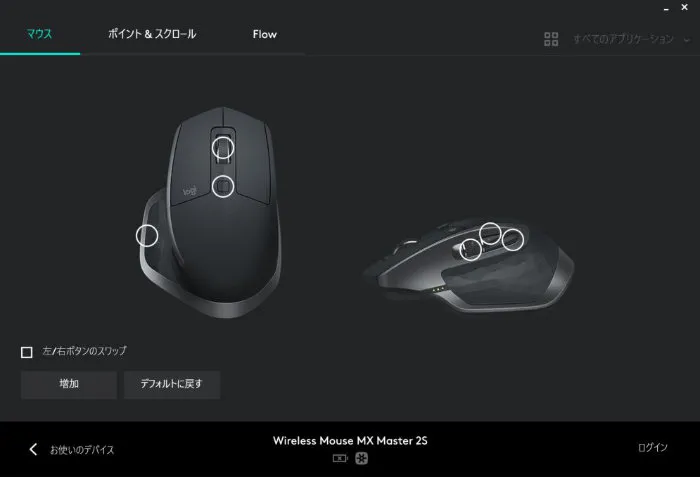
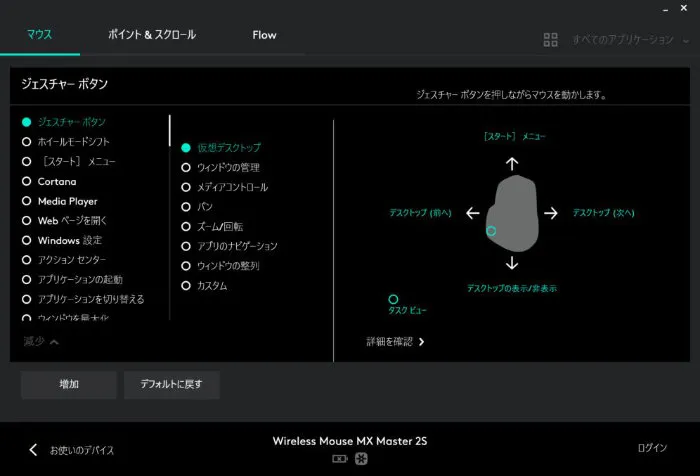
The gesture button can carry four directional actions — up, down, left, right — on top of its press action.
Wheel sensitivity and pointer speed are tunable in fine steps. You can, for example, dial the wheel scroll distance specifically for Excel sessions.
FAQ
Q. Does it work with a Mac? A. Yes. Logicool Options for Mac is available, and the mouse connects over either Bluetooth or the USB receiver.
Q. How long does the battery last? A. Logitech lists 70 days. In actual use I charged it every two to three months.
Q. Can it be used for gaming? A. Response-wise it behaves like an ordinary mouse. For FPS or other titles that need precise input, a dedicated gaming mouse is the better tool — and given the gesture-button concern, anything with violent clicking is best kept off this mouse.
Q. Does it connect to an iPad? A. Yes, from iPadOS 13.4 onward iPads support mice. Pairing happens over Bluetooth.
Verdict — a mouse for a specific kind of work
It is not a universal recommendation. For the right workload, though, it is hard to go back from.
In Excel, Figma, or a video editor — anywhere horizontal scrolling shows up constantly — the side wheel changes the day-to-day feel of the work.
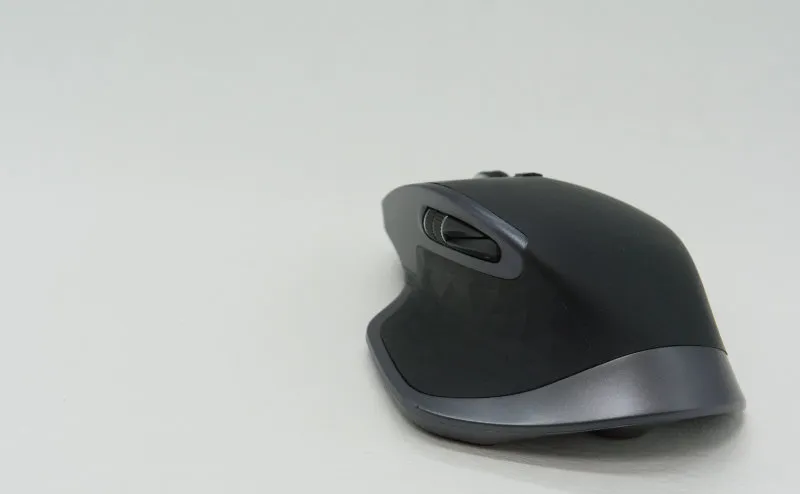
The two things to weigh are the size and the gesture button. If you can hold one in a store before deciding, that is still the surest way to avoid buyer’s remorse.