Contents19
- Specs by work-to-gaming split
- Resolution: 27-inch 4K or 1440p
- Connecting a laptop: USB-C power and KVM
- Refresh rate and game fps
- How to tell variable refresh rate (FreeSync and G-SYNC) apart
- OLED burn-in warranty if you also work on it
- Picks by situation
- A cheaper all-rounder (27-inch 1440p IPS, 144Hz or more)
- A laptop on a 65 W charger (27-inch 1440p, 144Hz or more)
- 4K (27-inch, 120Hz, 65 W or more of power delivery)
- OLED at 240Hz or more
- A laptop and a gaming PC switched with KVM
- FAQ
- What should you prioritize when one monitor has to handle work and gaming?
- Should a 27-inch monitor be 1440p or 4K?
- Is there a difference between 144–180Hz and 240Hz?
- How many watts of USB-C power delivery do you need for a work laptop?
- What is KVM, and do you need it to switch between a work laptop and a gaming PC?
- Is an OLED monitor okay for long work days, and does the warranty cover burn-in?
With 56.73 cm or more from eyes to screen, a 27-inch 1440p IPS monitor at 144–180Hz balances work and gaming most easily. Right at 56.73 cm it’s borderline.
Specs were checked against official pages as of October 2026. No monitor was tested in person.
Specs by work-to-gaming split
Pick by your work-to-gaming split. Mostly work: 4K; about half and half: 1440p with IPS. For mostly gaming, choose the refresh rate by your game’s fps.
Terms: Hz is how many times per second the screen redraws, fps is how many frames per second the game draws, and 1440p (WQHD) is 2560×1440.
Assumption: mapping the work-to-gaming split to specs is this guide’s own choice. Size assumes 56.73 cm or more from eyes to screen. The laptop’s USB-C port also has to support video output and USB PD charging.
| Work-to-gaming split | Screen | If you connect a laptop |
|---|---|---|
| Mostly work | 27-inch 4K (about 163 ppi), 120Hz class | USB-C with video and power delivery at least your charger’s wattage |
| About half and half | 27-inch 1440p (about 109 ppi), 144–180Hz, IPS | USB-C with video and power delivery at least your charger’s wattage |
| Mostly gaming | 27-inch-class 1440p; 144–180Hz up to 180 fps, 240Hz class above that. Panel: IPS or OLED at any fps | USB-C with video and power delivery at least your charger’s wattage |
For half and half, 1440p beats 4K because 4K has 2.25× the pixels to draw. This guide’s 4K picks also top out at 120Hz. At the same scaling, text on a 27-inch 1440p is 0.85× the size on a 23.8-inch 1080p.
The ASUS OLED checked lists 1,500,000:1 contrast, against 1,000:1 to 1,500:1 for the ASUS and Dell IPS models checked. That gap is why OLED is also an option for mostly gaming.
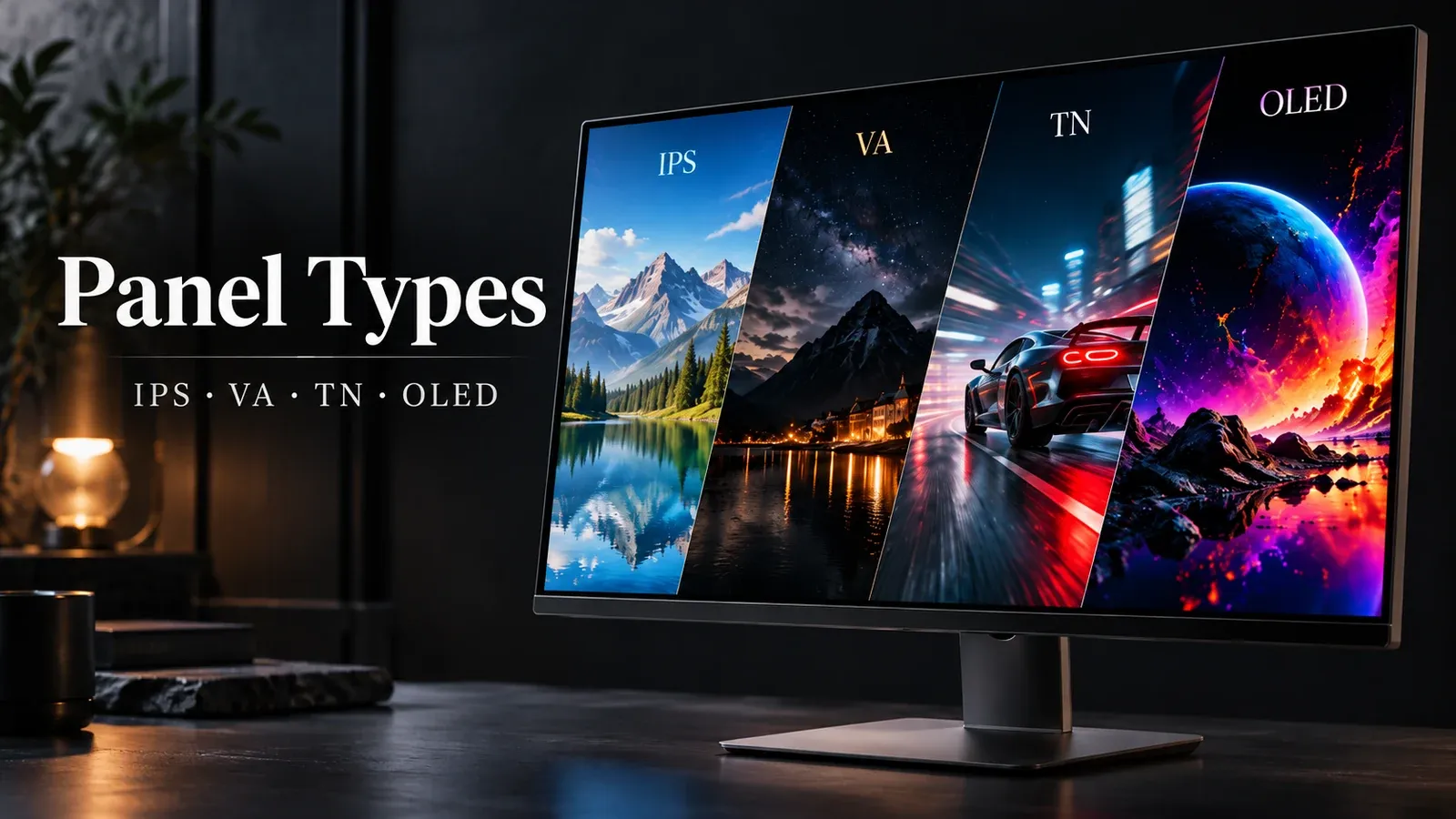
IPS is the pick for work-heavy and half-and-half setups because OLED makers warn that long-shown static images can burn in. IPS is an LCD type, and EIZO says it shows the least change in brightness and color from an angle among LCDs.
In this calculation, a 27-inch meets the target from 56.73 cm eye-to-screen, the same view as a 24-inch at 50 cm. Right at that distance it’s borderline.
A 32-inch meets the target from 66.22 cm eye-to-screen. Closer than 56.73 cm, choose a 24-inch, which meets the target from 50 cm. Right at each line it’s borderline.
How deep a desk you need depends on the stand’s depth and where you sit.
Try your own conditions:
Work-and-gaming monitor spec calculator
Pick your work-to-gaming split, whether you work on a laptop, your eye-to-screen distance and your game's fps to see the size, resolution, refresh rate and ports you need, plus a matching pick.
For these settings
For these settings
For these settings
For these settings
For these settings
For these settings
For these settings
For these settings
For these settings
For these settings
For these settings
For these settings
Resolution: 27-inch 4K or 1440p
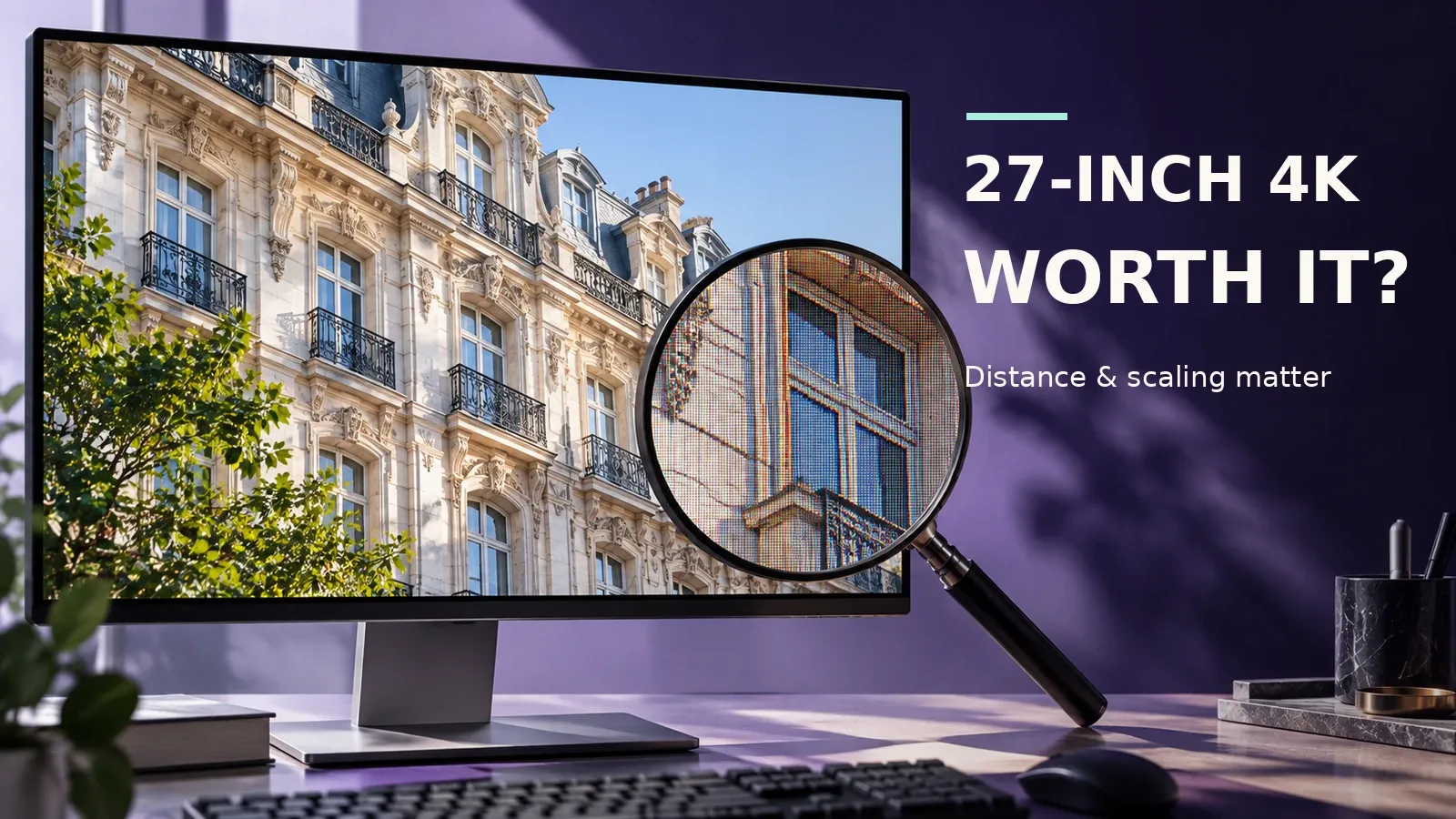
If it’s mostly work, consider a 27-inch 4K (about 163 ppi). At 150% scaling it gives the same workspace and text size as 1440p (about 109 ppi) at 100%. Text uses 1.5× as many pixels in each direction, or 2.25× in total.
Some 27-inch 4K models list a dual mode: 160Hz at 4K, or up to 320Hz after switching to 1080p.
Connecting a laptop: USB-C power and KVM
In this calculation, a monitor’s USB-C power counts as enough to charge a laptop while it shows video when its wattage is at least the charger’s. Below that, whether the laptop charges depends on the laptop, and this guide doesn’t judge it.
The Dell 27-inch USB-C models checked supply 65 W, enough for a laptop with a charger of 65 W or less. Exactly 65 W is borderline. The BenQ 27-inch OLED checked supplies 15 W over USB-C, not enough to charge a laptop with any of the chargers this guide assumes (45 W to 100 W).
By Dell’s description, you need KVM only if you want one keyboard and mouse to work with two computers.
The specs for the Dell 27-inch USB-C models checked don’t mention KVM either way.
Refresh rate and game fps
Going from 144Hz to 180Hz adds new frames only for the part of your fps between 144 fps and 180 fps. Going from 144Hz to 240Hz adds frames up to 240 fps, and from 180Hz to 240Hz only the fps above 180 fps adds frames.
More in the gaming monitor guide.
How to tell variable refresh rate (FreeSync and G-SYNC) apart
With an NVIDIA GPU, look for G-SYNC Compatible in the specs; with AMD, look for FreeSync. Variable refresh rate (VRR) makes the screen update in step with the game’s fps.
As the certifying bodies define it, NVIDIA describes G-SYNC Compatible as monitors it has validated for tear-free, stutter-free gaming. VESA’s AdaptiveSync Display is a gaming tier whose logo shows the maximum frame rate.
Per the makers’ official specs, the US picks from LG and Dell list FreeSync Premium. The ASUS OLED lists FreeSync Premium and G-SYNC Compatible, and the MSI lists FreeSync Premium Pro.
OLED burn-in warranty if you also work on it
Per the makers’ official specs, ASUS, Samsung and Dell warn that a static image left on an OLED for a long time can burn in. This guide doesn’t compare how likely it is.
On the 7 makers’ official pages checked in October 2026, LG and MSI word burn-in coverage differently on their Japan and US pages. Nothing was found on BenQ’s Japan product pages. If you’ll also work on an OLED, check the maker’s page for your country.
Assumption: only the makers of this guide’s US OLED picks, on their US pages. A product page’s wording applies to that model only.
| Maker | Warranty on the US page |
|---|---|
| ASUS | 3 years, including burn-in |
| MSI | 3 years, including burn-in |
Other makers’ warranties are covered in the panel guide.
For burn-in care, Dell runs an automatic pixel refresh after about four hours of use, and ASUS recommends pixel cleaning every four hours. BenQ’s OLED lists Pixel Shift, Idle Dimmer, Logo Dimming, Pixel Refresh.
Picks by situation
The rules: sold new by Amazon or the maker, not an import, at least 100 ratings, and 4 stars or more. For the LG, both Dell monitors and the ASUS, the rating count is the listing’s own, and whether it is shared with other models wasn’t checked. Check prices on the store.
A cheaper all-rounder (27-inch 1440p IPS, 144Hz or more)
200Hz applies over DisplayPort. LG’s Japan page lists 144Hz over HDMI, and its US page lists two HDMI 2.0 inputs without a rate.
A laptop on a 65 W charger (27-inch 1440p, 144Hz or more)
It’s borderline against a 65 W charger.
4K (27-inch, 120Hz, 65 W or more of power delivery)
Its power delivery is borderline against a 65 W charger.
It has no DisplayPort input: video comes in over two HDMI 2.1 ports or USB-C (DisplayPort Alt Mode), per Dell's spec.
OLED at 240Hz or more
A laptop and a gaming PC switched with KVM
MSI’s US spec page for this model lists a 3-year warranty that includes burn-in.
This listing also shows other MSI models; pick the 27” QHD OLED.
How this was checked:
- OSHA and Japan’s labor ministry guideline for viewing distance
- USB-IF and Dell’s KVM setup guide
- NVIDIA, AMD and VESA
- Picks: ASUS ROG Strix OLED XG27AQDMG and MSI MPG 271QRX QD-OLED
FAQ
What should you prioritize when one monitor has to handle work and gaming?
With 56.73 cm or more from eyes to screen, a 27-inch 1440p IPS monitor at 144–180Hz balances work and gaming most easily. Right at 56.73 cm it’s borderline.
If it’s mostly work, put text sharpness and USB-C first. If it’s about half and half, pick a 27-inch 1440p at 144–180Hz.
If it’s mostly gaming, go to 240Hz only when fps goes above 180 fps, and OLED is also an option.
Should a 27-inch monitor be 1440p or 4K?
For half and half, pick a 27-inch 1440p monitor; for mostly work, pick 4K. For half and half, 1440p beats 4K because 4K has 2.25× the pixels to draw.
This guide’s 4K picks also top out at 120Hz. At the same scaling, text on a 27-inch 1440p is 0.85× the size on a 23.8-inch 1080p.
Is there a difference between 144–180Hz and 240Hz?
In this calculation, going from 144Hz to 180Hz adds new frames only for the part of your fps between 144 fps and 180 fps. Going from 144Hz to 240Hz adds frames up to 240 fps, and from 180Hz to 240Hz only the fps above 180 fps adds frames.
How many watts of USB-C power delivery do you need for a work laptop?
In this calculation, a monitor’s USB-C power counts as enough to charge a laptop while it shows video when its wattage is at least the charger’s. Below that, whether the laptop charges depends on the laptop, and this guide doesn’t judge it.
The Dell 27-inch USB-C models checked supply 65 W, enough for a laptop with a charger of 65 W or less. Exactly 65 W is borderline.
What is KVM, and do you need it to switch between a work laptop and a gaming PC?
By Dell’s description, you need KVM only if you want one keyboard and mouse to work with two computers. Pick a model whose specs mention KVM.
Is an OLED monitor okay for long work days, and does the warranty cover burn-in?
On their US spec pages, ASUS and MSI each list a 3-year warranty that includes panel burn-in for their OLED pick. Per the makers’ official specs, ASUS, Samsung and Dell warn that a static image left on an OLED for a long time can burn in.
This guide doesn’t compare how likely it is. Other models can differ, so check the maker’s page for your country before buying.
Data and formulas used (for verification)
Method
- Mapping the work-to-gaming split to specs is this guide’s own choice, not an official standard. Mostly work → 27-inch 4K (120Hz class) with USB-C power; about half and half → 27-inch 1440p IPS at 144Hz–180Hz; mostly gaming → 240Hz class if fps goes above 180 fps, or OLED. Every combination of split, laptop or not, charger wattage (45 W–100 W), eye-to-screen distance (50 cm (19.7 in)–100 cm (39.4 in) in 5 cm steps) and fps was checked so the advice and picks meet their conditions.
- Size: the 27-inch target distance = 50 cm (the lower end of OSHA’s preferred range) × the 27-inch viewable width (59.789 cm) ÷ the 23.8-inch viewable width (52.704 cm), the distance at which it looks as wide as a 24-inch at 50 cm. Rounded up to two decimals: 56.73 cm (22.4 in) (no room right at that distance). Same formula as the sibling guide on monitor size.
- 32-inch target: from the 32-inch-class (31.5”) 1440p viewable width 69.8 cm: 50 cm × 69.8 cm ÷ 52.704 cm, rounded up to two decimals: 66.22 cm (26.1 in). The 31.5-inch 4K viewable width is 69.731 cm and is not used here (same as the sibling guide on monitor size).
- Text sharpness: ppi = 25.4 ÷ pixel pitch (27-inch 1440p 0.2331 mm, 27-inch 4K 0.1554 mm). The distance at which one pixel equals the eye’s resolving angle (1 arcminute, ITU) = pixel pitch ÷ tan(1 arcminute). Text size ratio at the same scaling = pixel pitch ÷ the 23.8-inch 1080p pixel pitch (0.2745 mm). 4K at 150% gives 3840 ÷ 1.5 = 2560, the same workspace as 1440p at 100%.
- Refresh rate: new frames shown per second = min(game fps, refresh rate). Steps are 144Hz, 180Hz and 240Hz; the advice is the lowest step that shows all your fps. Assumes a steady fps; input lag and how it feels are not included.
- USB-C: power delivery is enough when the monitor’s wattage is at least the laptop charger’s. This assumes the laptop’s USB-C port supports video output and USB PD charging. Less than 10% to spare is called borderline. KVM is counted only when the maker’s specs state it; models whose specs don’t mention it are listed as not stated, not as unsupported.
- Variable refresh rate is described in NVIDIA’s, AMD’s and VESA’s own terms, without ranking. Response times use different methods (GtG, MPRT, or no method stated), so they are not compared across models.
- OLED: whether the warranty covers burn-in was classified from the makers’ official wording, separately for Japan and the US (checked dates are on each fact). How likely burn-in is, and panel lifespan, were not compared. Care features are as the makers list them.
- Picks are new Amazon listings with at least 100 ratings and 4 stars, not an import, and sold by Amazon or a seller confirmed as the maker’s own store, whose official specs meet each slot’s condition, cheapest with shipping first. Rating counts pooled with other models or sizes are not counted (pooling across color or finish variants of the same model and spec is). Exception: for the US picks LG 27G610A-B, Dell S2725DC, Dell S2725QC and ASUS XG27AQDMG, whether the count is shared with other models was not checked, and the listing’s count is used. No unit was tested in person.
Official values used
| Item | Value | Source | Checked |
|---|---|---|---|
| MHLW minimum eye-to-screen distance | 40 cm | mhlw.go.jp | 2026-10-07 |
| MHLW recommended character height | 3 mm | mhlw.go.jp | 2026-10-07 |
| MHLW character visual angle | 20 arcminutes | mhlw.go.jp | 2026-10-07 |
| MHLW character visual angle (upper end) | 22 arcminutes | mhlw.go.jp | 2026-10-07 |
| Lower end of OSHA’s preferred range | 50 cm | osha.gov 20 to 40 inches (50 to 100 cm) | 2026-10-07 |
| Upper end of OSHA’s preferred range | 100 cm | osha.gov 20 to 40 inches (50 to 100 cm) | 2026-10-07 |
| ITU typical smallest resolvable angle | 1 arcminute | itu.int considering a) the typical value of the minimum angular resolution of human visi | 2026-10-07 |
| 23.8-inch 1080p pixel pitch | 0.2745 mm | dl.dell.com Dell S2425H pixel pitch | 2026-10-07 |
| 23.8-inch 1440p pixel pitch | 0.2058 mm | dl.dell.com Dell P2423D pixel pitch PDF p.13 | 2026-10-07 |
| 23.8-inch 4K pixel pitch | 0.13725 mm | downloads.dell.com Dell P2415Q pixel pitch PDF p.10 | 2026-10-07 |
| 27-inch 1080p pixel pitch | 0.3114 mm | dl.dell.com Dell S2725H pixel pitch | 2026-10-07 |
| 27-inch 1440p pixel pitch | 0.2331 mm | dl.dell.com Dell S2725DS pixel pitch | 2026-10-07 |
| 27-inch 4K pixel pitch | 0.1554 mm | dl.dell.com Dell U2723QE pixel pitch PDF p.14 | 2026-10-07 |
| 31.5-inch 1440p pixel pitch | 0.2727 mm | dl.dell.com | 2026-10-07 |
| 31.5-inch 4K pixel pitch | 0.18159 mm | dl.dell.com Dell U3223QE pixel pitch PDF p.14 | 2026-10-07 |
| Windows scaling steps | 100–125–150–175–200–225–250–300–350 % | learn.microsoft.com scaling plateaus of 100%, 125%, 150%, 175%, 200%, 225%, 250%, 300%, 350%, and 40 | 2026-10-07 |
| HDMI 2.0 maximum rate | 18 Gbps | hdmi.org HDMI 2.0 up to 18Gbps, 4K@50/60 | 2026-10-07 |
| HDMI 2.1 maximum rate | 48 Gbps | hdmi.org HDMI 2.1 up to 48Gbps, 8K60 and 4K120 | 2026-10-07 |
| DisplayPort 1.4 effective payload | 25.92 Gbps | vesa.org DP 1.4a: HBR3 32.4 Gbps, max payload 25.92 Gbps | 2026-10-07 |
| DSC maximum compression ratio | 3 | vesa.org DSC 1.2 enables up to 3:1 compression ratio and has been deemed visually lossles | 2026-10-07 |
| 27-inch viewable width | 59.789 cm | dl.dell.com S2725H Active Area Horizontal 597.89 mm p.16 | 2026-10-07 |
| 27-inch viewable height | 33.631 cm | dl.dell.com S2725H Active Area Vertical 336.31 mm p.16 | 2026-10-07 |
| 23.8-inch viewable width | 52.704 cm | dl.dell.com S2425H Active Area Horizontal 527.04 mm p.16 | 2026-10-07 |
| 23.8-inch viewable height | 29.646 cm | dl.dell.com S2425H Active Area Vertical 296.46 mm p.16 | 2026-10-07 |
| 31.5-inch viewable width | 69.731 cm | dl.dell.com S3225QS Active area Horizontal 697.31 mm Table 7 | 2026-10-07 |
| 31.5-inch viewable height | 39.223 cm | dl.dell.com S3225QS Vertical 392.23 mm Table 7 | 2026-10-07 |
| NVIDIA’s G-SYNC description | tear-free, stutter-free | nvidia.com G-SYNC Compatible: Doesn’t use NVIDIA processors but is validated by NVIDIA to d | 2026-10-07 |
| NVIDIA VRR range ratio | 2.4 | nvidia.com | 2026-10-07 |
| AMD LFC lower refresh rate | 60 Hz | amd.com FAQ: a display with a 60 – 144Hz refresh rate, would be able to sync the frames | 2026-10-07 |
| AMD LFC upper refresh rate | 144 Hz | amd.com | 2026-10-07 |
| AMD LFC fps | 40 fps | amd.com | 2026-10-07 |
| BenQ MPRT floor at 144Hz | 6.9 ms | benq.com MPRT … measures how long a pixel remains apparent or visible on the screen … | 2026-10-07 |
| Clear MR low | 3000 | clearmr.org Clear Motion Ratio (CMR) … ratio of clear pixels to blurry pixels / tiers—from | 2026-10-07 |
| Clear MR high | 21000 | clearmr.org from ClearMR 3000 up to ClearMR 21000 | 2026-10-07 |
| HDMI 2.1 rate | 48 Gbps | hdmi.org supports … 8K60 and 4K120 … bandwidth capability is increased up to 48Gbps | 2026-10-07 |
| HDMI 2.0 rate | 18 Gbps | hdmi.org Q: Can a product claim compliance to the HDMI 2.1 Specification even if it only | 2026-10-07 |
| GtG and MPRT definitions | GtG / MPRT definitions | eizo.com Gray-to-gray: the time it takes a pixel to change from one gradation of gray to | 2026-10-07 |
| Dell S2725DSM specs | 27-inch IPS, 2560 x 1440 at 144Hz, 1 ms MPRT / 4 ms GtG (Extreme Mode), native contrast 1,500:1, 178°/178° viewing angles | dell.com 2560 x 1440 at 144Hz / 1 ms MPRT, 4 ms GTG (Extreme Mode) / Native Contrast Rati | 2026-10-07 |
| ASUS TUF Gaming VG27AQ3A specs | panel: IPS / label: Fast IPS / size: 27 / res: 2560×1440 / hz: 180 / cr: 1000 / cr_label: typical / va: [178,178] / va_cond: true / rt: [“ms”:1,“method”:“GtG”] | asus.com Fast IPS, 180Hz, 1000:1, 1ms (GTG), Viewing Angle (CR≧10) 178°/178° | 2026-10-07 |
| ASUS ROG Strix OLED XG27AQDMG specs | panel: OLED / label: WOLED / size: 26.5 / res: 2560×1440 / hz: 240 / cr: 1500000 / cr_label: typical / va: [178,178] / va_cond: true / rt: [“ms”:0.03,“method”:“GtG”] | rog.asus.com Contrast Ratio (Typ.) 1,500,000:1; Viewing Angle (CR≧10) 178°/178° | 2026-10-07 |
| Dell Japan burn-in warranty | years: 3 / covered: yes / upto: true | dell.com | 2026-10-07 |
| Dell US burn-in warranty | years: 3 / covered: yes / upto: true | dell.com QD–OLED panel technology is limited to a 3-year maximum warranty term, includes | 2026-10-07 |
| ASUS Japan burn-in warranty | years: 3 / covered: yes_en_only | rog.asus.com | 2026-10-07 |
| ASUS US burn-in warranty | years: 3 / covered: yes | rog.asus.com Warranty: 3 years (including panel burn-in) | 2026-10-07 |
| LG Japan burn-in warranty | years: 2 / covered: yes | lg.com | 2026-10-07 |
| LG US burn-in warranty | years: 2 / covered: not_stated | lg.com | 2026-10-07 |
| MSI Japan burn-in warranty | years: 3 / covered: not_stated | jp.msi.com | 2026-10-07 |
| MSI US burn-in warranty | years: 3 / covered: yes | us.msi.com WARRANTY 3 years (including panel burn-in) | 2026-10-07 |
| Samsung Japan burn-in warranty | years: null / covered: not_sold | samsung.com | 2026-10-07 |
| Samsung US burn-in warranty | years: 3 / covered: yes / excl: true / hub: true | samsung.com Burn-in at normal usage covered within warranty. (But, not covered for Commercia | 2026-10-07 |
| GIGABYTE Japan burn-in warranty | years: 3 / covered: yes | gigabyte.com | 2026-10-07 |
| GIGABYTE US burn-in warranty | years: 3 / covered: conflict | gigabyte.com Warranty 3 years (including panel burn-in) | 2026-10-07 |
| Dell pixel refresh interval | four hours | dell.com Pixel Refresh: activated automatically when the monitor is used for at least fou | 2026-10-07 |
| Dell panel refresh interval | 1,500 hours | dell.com Panel Refresh: activated automatically when the accumulated usage time exceeds t | 2026-10-07 |
| ASUS OLED cleaning interval | four hours | asus.com recommends pixel cleaning every four hours; process about 6 minutes | 2026-10-07 |
| Dell pixel refresh duration | about 6 to 8 minutes | dell.com The process takes approximately 6 to 8 minutes to complete. | 2026-10-07 |
| Dell panel refresh duration | about an hour | dell.com The process takes approximately an hour to complete. | 2026-10-07 |
| ASUS cleaning duration | about 6 minutes | asus.com The process will take approximately 6 minutes. | 2026-10-07 |
| Static-image burn-in warning | static image burn-in warning | asus.com Image persistence, or burn-in, on an OLED display can occur if a static high-con | 2026-10-07 |
| DisplayHDR True Black 400 black-level limit | 0.0005 cd/m² | displayhdr.org DisplayHDR True Black: Dual Corner Box Test maximum black 0.0005 cd/m² (all True | 2026-10-07 |
| USB Power Delivery maximum power (spec) | 240 W | usb.org | 2026-10-09 |
| VESA AdaptiveSync Display logo definition | AdaptiveSync Display logo = gaming tier with a maximum frame rate value | vesa.org 2022-05-02. Adaptive-Sync Display CTS: more than 50 test criteria; AdaptiveSync | 2026-10-09 |
| Dell’s description of the KVM feature | KVM = one keyboard and mouse for two computers | dell.com The KVM feature allows you to view and work with content on two computers using | 2026-10-09 |
| Dell S2725DC maximum refresh rate | 144 Hz | dell.com US page (2026-10-09): Resolution / Refresh Rate 2560 x 1440 at 144Hz; Standard R | 2026-10-09 |
| Dell S2725DC USB-C power delivery (upstream) | 65 W | dell.com US page (2026-10-09): USB Type-C (Power Delivery) Upstream 65 W; USB-C upstream | 2026-10-09 |
| Dell S2725DC variable refresh rate | AMD FreeSync Premium | dell.com US page (2026-10-09): Adaptive Sync: AMD FreeSync Premium | 2026-10-09 |
| Dell S2725DC MPRT | 1 ms | dell.com | 2026-10-09 |
| Dell S2725DC GtG (Extreme mode) | 4 ms | dell.com | 2026-10-09 |
| Dell S2725DC KVM | not stated | dell.com US page (2026-10-09): no KVM listed in the specifications or features | 2026-10-09 |
| Dell S2725DC warranty | 3 years | dell.com | 2026-10-09 |
| Dell S2725QC maximum refresh rate | 120 Hz | dell.com US page (2026-10-09): 3840 x 2160 at 120 Hz; HDMI 2.1 and DisplayPort 1.4 alt mo | 2026-10-09 |
| Dell S2725QC USB-C power delivery (upstream) | 65 W | dell.com US page (2026-10-09): USB Type-C (Power Delivery) 65 W; upstream port (DisplayPo | 2026-10-09 |
| Dell S2725QC GtG (Extreme mode) | 4 ms | dell.com | 2026-10-09 |
| Dell S2725QC KVM | not stated | dell.com US page (2026-10-09): no KVM listed in the specifications or features | 2026-10-09 |
| Dell S2725QC warranty | 3 years | dell.com | 2026-10-09 |
| ASUS VG27AQ5A max Hz over DisplayPort | 210 Hz | asus.com | 2026-10-09 |
| ASUS VG27AQ5A max Hz over HDMI | 144 Hz | asus.com HDMI(v2.0) x2, 48~144Hz(V) | 2026-10-09 |
| ASUS VG27AQ5A variable refresh rate | Adaptive-Sync, AMD FreeSync Premium | asus.com | 2026-10-09 |
| ASUS VG27AQ5A GtG | 1 ms | asus.com | 2026-10-09 |
| ASUS VG27AQ5A USB-C | service port only | asus.com | 2026-10-09 |
| BenQ EX271QMZ maximum refresh rate | 240 Hz | benq.com | 2026-10-09 |
| BenQ EX271QMZ response time (as stated) | 0.03 ms | benq.com | 2026-10-09 |
| BenQ EX271QMZ pixel density | 110 ppi | benq.com | 2026-10-09 |
| BenQ EX271QMZ USB-C power delivery | 15 W | benq.com | 2026-10-09 |
| BenQ EX271QMZ variable refresh rate | FreeSync Premium | benq.com | 2026-10-09 |
| BenQ EX271QMZ burn-in protection features | Pixel Shift, Idle Dimmer, Logo Dimming, Pixel Refresh | benq.com | 2026-10-09 |
| BenQ Japan burn-in warranty | years: null / covered: not_stated | benq.com | 2026-10-09 |
| KTC H27P6 max refresh rate at 4K | 160 Hz | us.ktcplay.com | 2026-10-09 |
| KTC H27P6 max refresh rate at FHD | 320 Hz | us.ktcplay.com 320Hz Refresh Rate (FHD) | 2026-10-09 |
| KTC H27P6 USB-C power delivery | 90 W | us.ktcplay.com 90W USB-C Charging. Connect via HDMI 2.1, DP 1.4, or USB-C. Charge your laptop a | 2026-10-09 |
| KTC H27P6 KVM | stated | us.ktcplay.com | 2026-10-09 |
| KTC H27P6 variable refresh rate | FreeSync & G-SYNC compatible | us.ktcplay.com Image Synchronization With FreeSync & G-Sync compatible | 2026-10-09 |
| KTC H27P6 pixel density | 163 ppi | us.ktcplay.com 163 PPI Pixel density, 27-inch, Fast IPS | 2026-10-09 |
| KTC H27P6 warranty (US official store) | 3 years | us.ktcplay.com | 2026-10-09 |
| LG 27G610A-B max Hz over DisplayPort | 200 Hz | lg.com US page (2026-10-09): 200Hz Refresh Rate; Input/Output: DisplayPort 1.4 x1, HDMI | 2026-10-07 |
| LG 27G610A-B max Hz over HDMI | 144 Hz | lg.com US page (2026-10-09): HDMI Version 2.0 x2. No per-input Hz is listed on the US p | 2026-10-07 |
| LG 27G610A-B variable refresh rate | VRR, AMD FreeSync Premium | lg.com US page (2026-10-09): Seamless frame sync with FreeSync Premium | 2026-10-07 |
| Dell S2725QC variable refresh rate | AMD FreeSync Premium (up to 120Hz) | dell.com US page (2026-10-09): AMD FreeSync Premium (refresh rate up to 120Hz) | 2026-10-09 |
| ASUS XG27AQDMG variable refresh rate | FreeSync Premium & G-SYNC Compatible | rog.asus.com | 2026-10-09 |
| MSI MPG 271QRX maximum refresh rate | 360 Hz | us.msi.com | 2026-10-09 |
| MSI MPG 271QRX USB-C power delivery | 90 W | us.msi.com | 2026-10-09 |
| MSI MPG 271QRX variable refresh rate | AMD FreeSync Premium Pro | us.msi.com | 2026-10-09 |
| MSI MPG 271QRX KVM | stated | us.msi.com | 2026-10-09 |
| 32-inch 1440p viewable width | 69.8 cm | lg.com | 2026-10-07 |
| EIZO on IPS | IPS has least change in brightness or chromaticity from an angle | eizo.com spec viewing angle = angle until the contrast ratio drops to 10:1 or 5:1; does n | 2026-10-07 |
Work-and-gaming monitor spec calculator: quick reference
The calculator in this article shows the result for your own settings. Settings can be set in the URL; each link below opens the calculator with those settings.
| Settings | Result | Calculator |
|---|---|---|
| Mostly work, No laptop, 60 cm (24 in), Not sure | ✓ 27-inch 4K, 120Hz class. Size: 27-inch (target about 57 cm or more; about 3 cm to spare). Resolution: 4K (about 163 ppi). At 150% scaling it matches 1440p’s workspace at 100%. Refresh rate: 120Hz class (at 0 fps, 0 new frames per second). Panel: IPS | Open with these settings |
| Mostly work, No laptop, 60 cm (24 in), 60 fps | ✓ 27-inch 4K, 120Hz class. Size: 27-inch (target about 57 cm or more; about 3 cm to spare). Resolution: 4K (about 163 ppi). At 150% scaling it matches 1440p’s workspace at 100%. Refresh rate: 120Hz class (at 60 fps, 60 new frames per second). Panel: IPS | Open with these settings |
| Mostly work, No laptop, 60 cm (24 in), 144 fps | ✓ 27-inch 4K, 120Hz class. Size: 27-inch (target about 57 cm or more; about 3 cm to spare). Resolution: 4K (about 163 ppi). At 150% scaling it matches 1440p’s workspace at 100%. Refresh rate: 120Hz class (at 144 fps, 120 new frames per second). Frames above 120 fps aren’t shown. Panel: IPS | Open with these settings |
| Mostly work, No laptop, 60 cm (24 in), 240 fps or more | ✓ 27-inch 4K, 120Hz class. Size: 27-inch (target about 57 cm or more; about 3 cm to spare). Resolution: 4K (about 163 ppi). At 150% scaling it matches 1440p’s workspace at 100%. Refresh rate: 120Hz class (at 240 fps, 120 new frames per second). Frames above 120 fps aren’t shown. Panel: IPS | Open with these settings |
| About half and half, No laptop, 60 cm (24 in), Not sure | ✓ 27-inch 1440p, 144–180Hz class. Size: 27-inch (target about 57 cm or more; about 3 cm to spare). Resolution: 1440p (about 109 ppi). Refresh rate: 144–180Hz class (the range when you don’t know your fps). Panel: IPS | Open with these settings |
| About half and half, No laptop, 60 cm (24 in), 60 fps | ✓ 27-inch 1440p, 144Hz class. Size: 27-inch (target about 57 cm or more; about 3 cm to spare). Resolution: 1440p (about 109 ppi). Refresh rate: 144Hz class (at 60 fps, 60 new frames per second). Panel: IPS | Open with these settings |
| About half and half, No laptop, 60 cm (24 in), 144 fps | ✓ 27-inch 1440p, 144Hz class. Size: 27-inch (target about 57 cm or more; about 3 cm to spare). Resolution: 1440p (about 109 ppi). Refresh rate: 144Hz class (at 144 fps, 144 new frames per second). Panel: IPS | Open with these settings |
| About half and half, No laptop, 60 cm (24 in), 240 fps or more | ✓ 27-inch 1440p, 180Hz class. Size: 27-inch (target about 57 cm or more; about 3 cm to spare). Resolution: 1440p (about 109 ppi). Refresh rate: 180Hz class (at 240 fps, 180 new frames per second). Frames above 180 fps aren’t shown. Panel: IPS | Open with these settings |
| Mostly gaming, No laptop, 60 cm (24 in), Not sure | ✓ 27-inch 1440p, 144–180Hz class. Size: 27-inch (target about 57 cm or more; about 3 cm to spare). Resolution: 1440p (about 109 ppi). Refresh rate: 144–180Hz class (the range when you don’t know your fps; 240Hz class if fps goes above 180). Panel: IPS or OLED (for OLED, check that the maker’s page for your country covers burn-in) | Open with these settings |
| Mostly gaming, No laptop, 60 cm (24 in), 60 fps | ✓ 27-inch 1440p, 144Hz class. Size: 27-inch (target about 57 cm or more; about 3 cm to spare). Resolution: 1440p (about 109 ppi). Refresh rate: 144Hz class (at 60 fps, 60 new frames per second). Panel: IPS or OLED (for OLED, check that the maker’s page for your country covers burn-in) | Open with these settings |
| Mostly gaming, No laptop, 60 cm (24 in), 144 fps | ✓ 27-inch 1440p, 144Hz class. Size: 27-inch (target about 57 cm or more; about 3 cm to spare). Resolution: 1440p (about 109 ppi). Refresh rate: 144Hz class (at 144 fps, 144 new frames per second). Panel: IPS or OLED (for OLED, check that the maker’s page for your country covers burn-in) | Open with these settings |
| Mostly gaming, No laptop, 60 cm (24 in), 240 fps or more | ✓ 27-inch 1440p, 240Hz class. Size: 27-inch (target about 57 cm or more; about 3 cm to spare). Resolution: 1440p (about 109 ppi). Refresh rate: 240Hz class (at 240 fps, 240 new frames per second). Panel: IPS or OLED (for OLED, check that the maker’s page for your country covers burn-in) | Open with these settings |
| About half and half, No laptop, 60 cm (24 in), 165 fps | ✓ 27-inch 1440p, 180Hz class. Size: 27-inch (target about 57 cm or more; about 3 cm to spare). Resolution: 1440p (about 109 ppi). Refresh rate: 180Hz class (at 165 fps, 165 new frames per second). Panel: IPS | Open with these settings |
| About half and half, Laptop over USB-C, 65W, 60 cm (24 in), 144 fps | △ 27-inch 1440p, 144Hz class, 65 W+ USB-C power (borderline). Size: 27-inch (target about 57 cm or more; about 3 cm to spare). Resolution: 1440p (about 109 ppi). Refresh rate: 144Hz class (at 144 fps, 144 new frames per second). Panel: IPS. USB-C: video input with 65 W or more power delivery. The pick supplies exactly 65 W, which is borderline. KVM: to share one keyboard and mouse between the laptop and a gaming PC, pick a model whose maker states KVM (if the specs don’t mention it, you can’t tell) | Open with these settings |
| Mostly work, Laptop over USB-C, 65W, 60 cm (24 in), 60 fps | △ 27-inch 4K, 120Hz class, 65 W+ USB-C power (borderline). Size: 27-inch (target about 57 cm or more; about 3 cm to spare). Resolution: 4K (about 163 ppi). At 150% scaling it matches 1440p’s workspace at 100%. Refresh rate: 120Hz class (at 60 fps, 60 new frames per second). Panel: IPS. USB-C: video input with 65 W or more power delivery. The pick supplies exactly 65 W, which is borderline. KVM: to share one keyboard and mouse between the laptop and a gaming PC, pick a model whose maker states KVM (if the specs don’t mention it, you can’t tell) | Open with these settings |
| Mostly work, Laptop over USB-C, 90W, 60 cm (24 in), 60 fps | ✓ 27-inch 4K, 120Hz class, 90 W+ USB-C power. No monitor among this guide’s US picks (Amazon.com listings that met its criteria) fits these conditions. Size: 27-inch (target about 57 cm or more; about 3 cm to spare). Resolution: 4K (about 163 ppi). At 150% scaling it matches 1440p’s workspace at 100%. Refresh rate: 120Hz class (at 60 fps, 60 new frames per second). Panel: IPS. USB-C: video input with 90 W or more power delivery. KVM: to share one keyboard and mouse between the laptop and a gaming PC, pick a model whose maker states KVM (if the specs don’t mention it, you can’t tell) | Open with these settings |
| About half and half, No laptop, 55 cm (22 in), 144 fps | ✓ At this distance a 24-inch is the target. At 55 cm a 27-inch doesn’t reach its target (about 57 cm), so go 24-inch (meets its target from 50 cm). This guide has no 24-inch pick | Open with these settings |